.png)
|
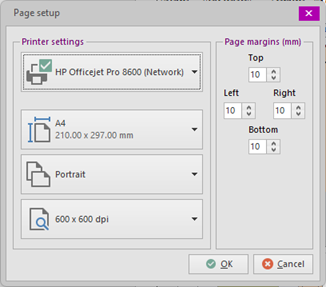
Brings up the page setup dialog:
This dialog allows you to define the page size and other properties for the well sketch. Note that there is a distinct difference between the page setup for the well sketch (which is saved with the drawing) and the page setup when printing the well sketch.
This dialog also allows you to define the page margins for the well sketch. |
.png)
|
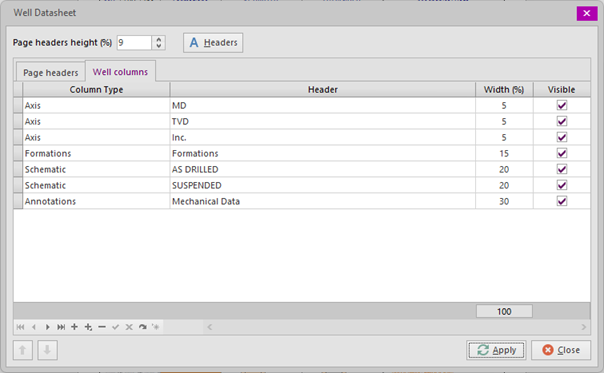
Brings up the column editor that allows adding, editing and deleting headers and well columns quickly.
The Page headers height (in percentage of the well sketch total height) controls the height of the header columns and therefore - implicitely - the height of the well columns. The font button allows specification of the font used for all column headers.
It also allow setting the column title, width (in percentage of the well sketch total width) and control visibility of the columns. Note that for some columns (e.g. Image Header) the Title will not be drawn. It will however be visible in the column selection drop-down list.
|
.png)
|
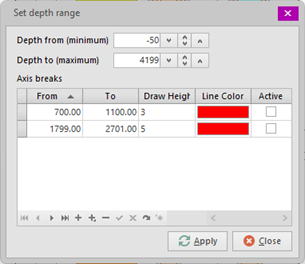
This dialog allows setting the depth range for the well sketch and defining axis breaks. You may input any depth when defining items to draw. The depth range merely functions as a 'view port'. I.e. only what falls in the current depth range is shown.
|
.png)
|
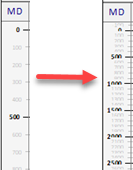
Allows setting the units used when drawing the well sketch. Currently only Measured Depths (and calculated TVD's) are converted. Only Axis columns may need modification (smaller or larger steps) when toggling between meters and feet. For example if an axis is defined in meters, the labels will likely clutter when changing to feet:
When this happens, the labels can be re-arranged in the axis column editor. |
.png)
|
Copies the entire well sketch to the Windows clipboard in bitmap format. This allows pasting the entire well sketch (including headers) to other programs, such as Microsoft Word™, Excel™ or PowerPoint™. |
.png)
Copyright © 2026 Softdrill NL