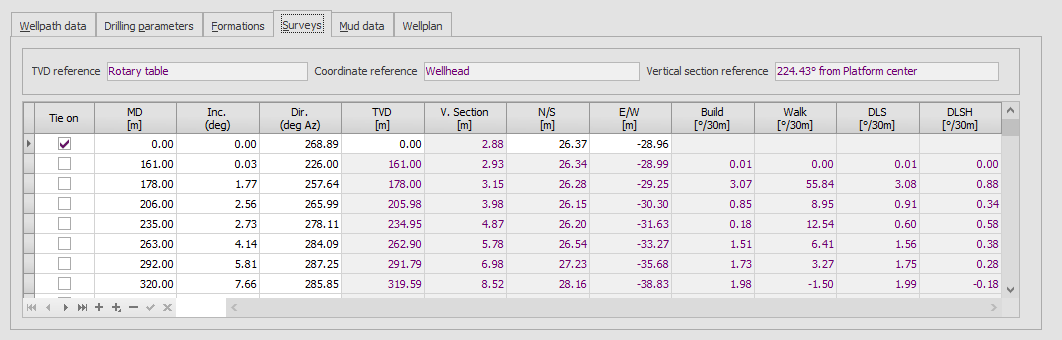
Directional surveys taken on the wellpath are stored on the Surveys tab of the Wellpath form. It should be noted that it is intended that ‘work surveys’ (i.e. surveys taken whilst drilling the wellpath) should be entered only; not ‘check surveys’ taken afterwards as they may suggest a different BHA behavior due to different survey results caused by hole erosion or surveys taken in casing.
For each survey, only measured depth (MD), inclination (Inc) and direction (Dir) have to be entered, all other values are calculated when the wellpath is calculated. By checking the box in the Tie on column, the TVD, N/S and E/W are made available for editing. This is indicated by the data cells no longer being highlighted. The first data row will always be a tie on point by default, but additional surveys may also be marked as such. This would be applicable after running a check survey (e.g. a casing gyro) and the need arises to correct TVD and coordinates.
Nevertheless, it is important to understand that the primary purpose of surveys in WellRep is to analyze BHA behavior and results. Other software - that is designed for that purpose - should be used for accurate wellbore positioning.
To compare the actual well trajectory (surveys) against the planned trajectory (wellplan), a well plot is available.
When using wellplanning and surveying software for calculation and storing of directional surveys, data may be exchanged through simple export files or through the Windows clipboard (copy & paste). A variety of export files (typically ASCII text files) may be imported in WellRep by clicking the Import Surveys… button.
The following dialog box will appear:
.png)
|
Import file |
|
|
Click the ellipsis button [...] to select a file containing the survey input data. Any text file containing at least three columns for Measured Depth, Inclination and Direction is acceptable. As soon as the file is opened, the data will be displayed in the Import Data grid (see 8). Data may appear scrambled, but this may be corrected by adjusting other settings in this dialog box (see below). |
|
|
|
|
.png)
.png)
|
Paste data |
|
|
If data, containing at least three columns for Measured Depth, Inclination and Direction was copied to the Windows clipboard (e.g. three columns from an Excel sheet), clicking this button will display the data in the Import Data grid (see 8). |
|
|
|
|
.png)
.png)
|
Value separator |
|
|
Select the character separating the columns in the import data. The Import Data grid will automatically be adjusted to display the effect of changing the separator character. |
|
|
|
|
.png)
.png)
|
Number of lines to skip |
|
|
Some data files may contain one or more comment lines at the top. Adjust this value to skip import of these lines. The Import Data grid will automatically be adjusted to display the effect of changing this value. |
|
|
|
|
.png)
.png)
|
Depth units for imported data |
|
|
This field should be set to the depth units of the import data. It will automatically be set to the current unit in use, but should be changed if the import data is in a different unit to ensure correct conversion when importing the data. For example, if WellRep is currently set to Meters, but a file containing Measured Depths in Feet must be imported, this field should be set to Feet. |
|
|
|
|
.png)
.png)
|
Column assignment |
|
|
Set these fields to assign which column in the import data should be imported to Measured Depth, Inclination and Direction respectively. |
|
|
|
|
.png)
.png)
.png)
.png)
|
Import data |
|
|
Displays the import data as it would be processed with the current settings. Red indicates the column that will be imported as Measured Depths, Green indicates the column that will be imported as Inclinations and Yellow indicates the column that will be imported as Directions. |
|
|
|
|
.png)
.png)
 Wellrep is not designed to replace built-for-purpose wellplanning and surveying software like Landmark Compass etc. Data is recorded for reference only and calculation of (interpolated) MD's and TVD's only. For formal calculation of wellplan and survey data (and resulting well placement) do not use WellRep.
|
Copyright © 2023 Softdrill NL |