Moving between inputs
Several features have been implemented to facilitate easy data entry and avoid excessive use of the mouse. To move between input fields, use the [Tab] key to move to the next logical input box and [Shift]-[Tab] to move to the backwards.
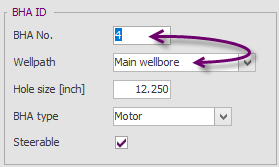
When entering data in grids, the Enter key may be used to move to the next field (column). When the Enter key is pressed on the last column, the first field on the next row will be selected. A new (blank) row will be appended when this occurs on the last column of the last row.
When entering new data, the column value in the row above may be copied to the current row by using the Ditto function. This function is particularly useful when entering repetitive data in grids where only a few data values change (e.g. drilling parameters or multiple tools in the inventory). This function is available in all grids throughout WellRep.
.png)
.png)
.png)
Deleting data records
To delete a specific record from a grid, select the record and press Control-Delete. A dialog box will appear to confirm whether the selected records should be permanently deleted. Note that multiple records may be selected and deleted at the same time.
Drop-down boxes
 Some combo boxes (drop-down boxes) may not have any values available when the down arrow is clicked. Examples are Operator and Contractor field in the General tab of the Well form. This is because the allowable values are derived from a lookup table to ensure consistent input. Allowable values may be user-defined. If no values (or the desired value) can be selected, it may be added to the lookup table in Lookup Data Maintenance.
Data in drop-down boxes (either in data grids or individual fields on forms) may be input by clicking the drop-down button with the mouse and clicking on the desired value (sometimes after scrolling the list by use of the scroll bar displayed in the drop-down list). Although this is the most intuitive way to use a drop-down box, the same effect can be achieved much quicker and simpler by only using the keyboard.
As soon as the first character of the desired value is typed into the drop-down box, the list will automatically drop down and already be filtered to only those values that start with the character typed. The list will filter even further is additional characters are typed. Once the list is short enough and the desired value is visible in the list, it may be quickly chosen by using the up and down key ( or ) and pressing the Enter key.
For example, to quickly enter ‘7-5/8 REG Box’ in a connection field, simply type ‘7-5’ as shown below. Once the list is short enough, the value may quickly selected by using the up and down arrow keys. Pressing Enter commits the selected list value to the data field.
.png)
|
Copyright © 2023 Softdrill NL |